How to back up your music projects, masters and catalog
A dead drive or one wrong click can take years of tracks with it. Here is what to back up, where to keep the copies, and how to check that they work.
In short. Back up four things: project files with their samples, the finished files you delivered, your catalog record, and your contracts. Follow the 3-2-1 rule: three copies, on two kinds of storage, one of them away from home. A synced cloud folder is not a backup, because a deletion syncs too. Name folders so a track can be found in a backup without the computer it came from. Restore one file now and then to check that the copies work.
What to back up
Project files, with their samples
A project file alone often does not open on another computer. It points to samples and recordings in other folders. If those folders are gone, the project opens with silent tracks. So collect everything a project uses into its folder before you back it up. Each DAW has a command for this:
- Ableton Live: File > Collect All and Save. It copies files from outside the project into the project folder. You choose which locations to collect from.
- Logic Pro: File > Save a Copy As. The copy includes your recordings and all assets saved with the project. Apple suggests it for archiving and moving.
- FL Studio: File > Export > Zipped loop package. It saves the project and its samples in one ZIP file. A plain .flp file does not include the audio samples.
- Cubase: File > Back up Project. It saves a copy with its media files in a new folder. Steinberg's own VST Sound content is copy-protected and is not included.
Plug-ins are never part of the project. Write down which plug-ins a project uses, with their versions. Better still, export the stems of finished tracks. Stems play anywhere, with no plug-ins at all.
Masters and every delivered version
Keep the exact files you sent out: the master, the instrumental, the edits, the loops and the stems. A library may ask for them again years later. A distributor may need the same file to fix a release. A new export from the project may not match the file you sent. See Versions, cutdowns and stems.
The catalog record
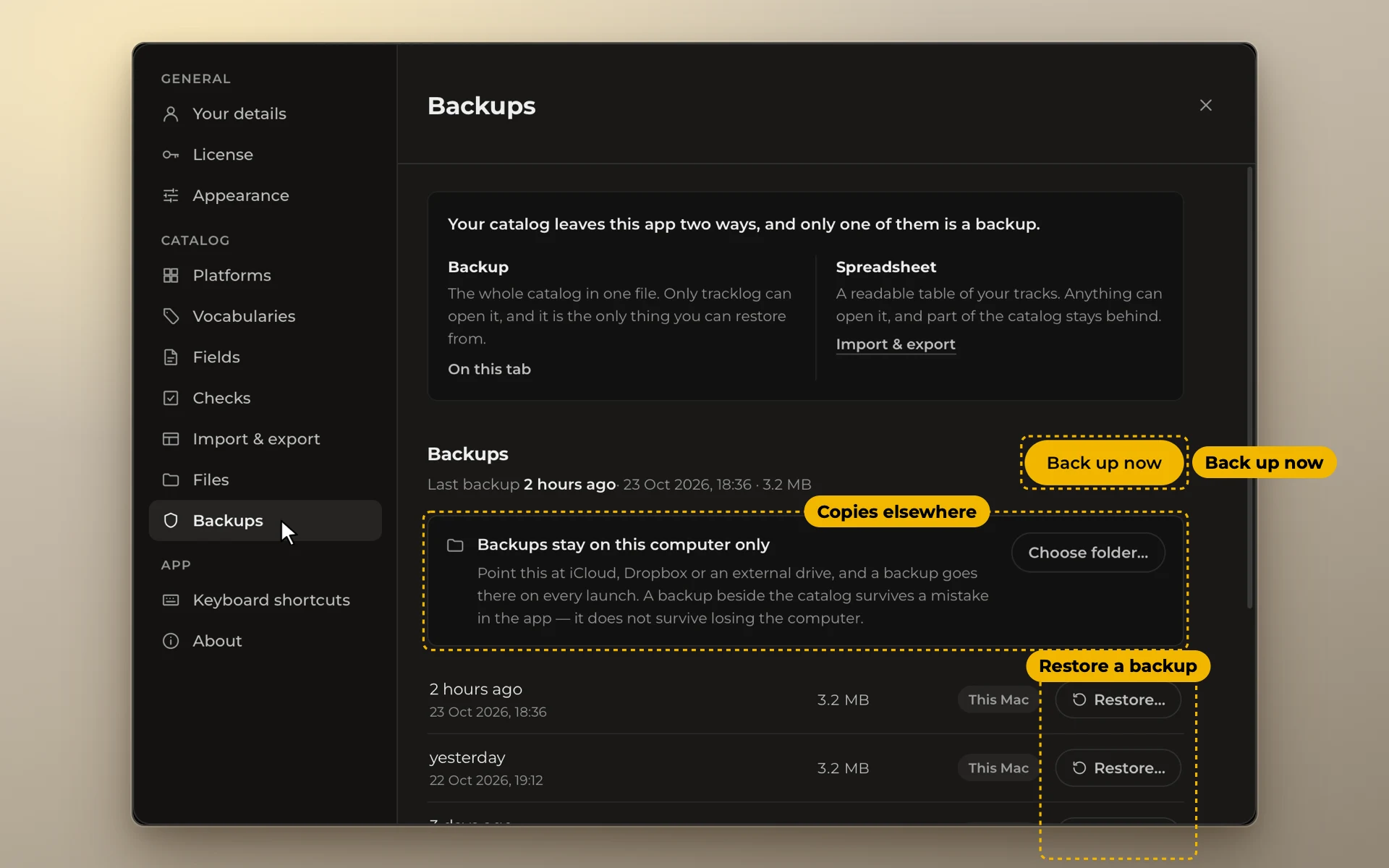
Your spreadsheet or catalog app is the map of your music. It says where each track is live, what title it has on each site, and its codes: ISRC, ISWC, UPC. Losing the audio hurts. Losing the map means weeks of checking every platform by hand. Back it up as often as the music, and more often while you work on it. See How to keep track of where your music is uploaded.
Licenses, contracts and receipts
Library agreements, exclusivity terms, sample licenses, and receipts for the sounds and plug-ins you bought. When a claim or a question comes, these are your proof. Save them as PDF files next to the catalog.
The 3-2-1 rule
A guide written for US-CERT puts it simply:
- Three copies of every important file: the original and two backups.
- Two different kinds of storage, so one problem cannot hit both. For example, the computer's disk and an external drive.
- One copy away from home. A fire, a flood or a theft takes everything in one room.
For most producers that means: the working disk, an external drive at home, and a copy in the cloud or on a drive kept somewhere else.
Drive, cloud sync and cloud backup
| What it does | Watch out for | |
|---|---|---|
| External drive | A copy you control. Fast for large projects. | It sits in the same room. Any drive can fail. |
| Cloud sync folder (iCloud Drive, Dropbox) | The same files on every device. | A deletion or a broken file syncs to every device too. |
| Cloud backup service | Copies your disk to a server and keeps older versions. | The first upload of a large library is slow. Check the plan's limits. |
Sync is not backup. Apple says it plainly: if you delete a file from iCloud Drive on one device, it is removed from every device signed in to the same account. Deleted files wait in Recently Deleted for 30 days, then they are gone. A backup keeps older copies even after the original changes or disappears.
Both computers have a backup tool built in. On a Mac, Time Machine makes hourly copies for the past 24 hours, daily copies for the past month, and weekly copies for older months. On Windows, File History saves copies of your libraries and chosen folders to an external drive or a network location. Either one gives you the copy at home. Add one copy away from home on top.
Name folders so a backup is findable
A backup is only useful if you can find a track in it. Even on a computer that knows nothing about your work.
- Give every track a number that never changes. Put it at the start of the folder and file names:
023_Harbour_Lights. See How to build a music catalog. - Keep one folder per track: the project, the masters, the versions and the stems inside it.
- Keep the same folder layout on every drive. Then a path in your catalog works in every copy.
- Write the folder of each track in your catalog. Then a library's question is answered by one search.
Test a restore
A backup you never opened is a guess. Once in a while, pick one track. Copy its folder from the backup to another place. Open the project, play the master, and open the catalog copy. If something is missing, you learn it now, not after a drive fails.
A simple monthly routine
- Collect and save every project you finished this month.
- Put the new masters and versions in their track folders.
- Check that the external drive backup ran, and the cloud copy too.
- Make a copy of the catalog before big changes, like an import or a cleanup.
- Restore one random track and open it.
- Write down the date. A note in the catalog is enough.
Sources
- Data Backup Options, CISA (US-CERT)
- Managing Files and Sets, Ableton Reference Manual
- Save Logic Pro for Mac projects, Apple Support
- File menu, FL Studio Online Manual
- Save/export file formats: FL Studio Project File, FL Studio Online Manual
- Backing up Projects, Steinberg Help
- Delete files or recover deleted files in the Files app on your iPhone or iPad, Apple Support
- Back up your Mac with Time Machine, Apple Support
- Backup and restore with File History, Microsoft Support