Import a spreadsheet
Bring your catalog in from a Google Sheet, a CSV or an Excel file. Nothing is saved until you press Import.
Your spreadsheet
Most producers keep a spreadsheet. Every sheet looks a bit different. The shape is always the same.
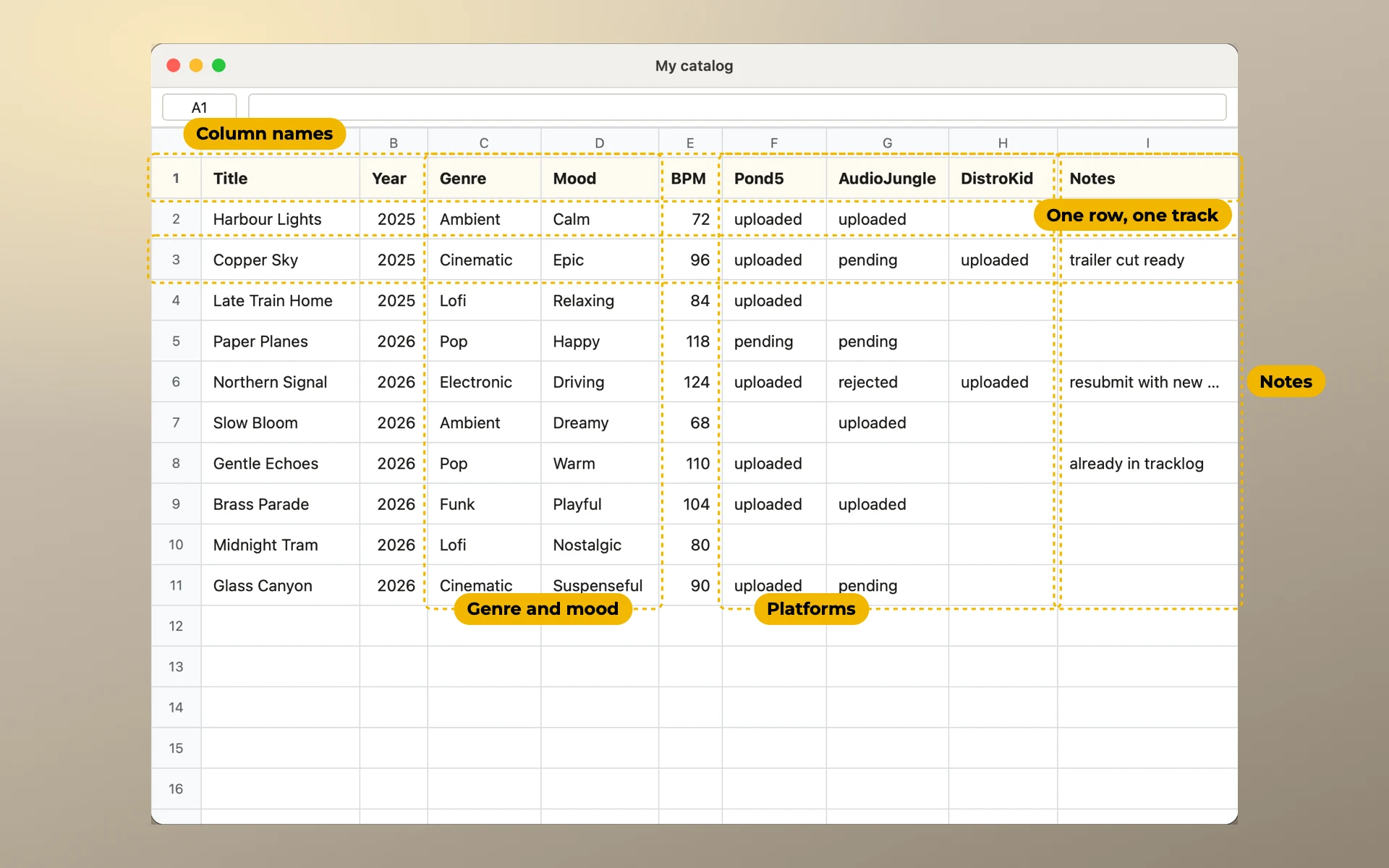
- One row is one track.
- The first row names the columns. Title, Year, Genre, BPM, the platforms, Notes.
- A platform is a column. Each cell holds one mark for one track:
uploaded,pending,rejected, or nothing. - Genre and mood are words. Several words fit in one cell:
Ambient, Chill. - Notes are free text. Anything you want to remember about the track.
Different sheets, same shape
Everyone marks platforms their own way.
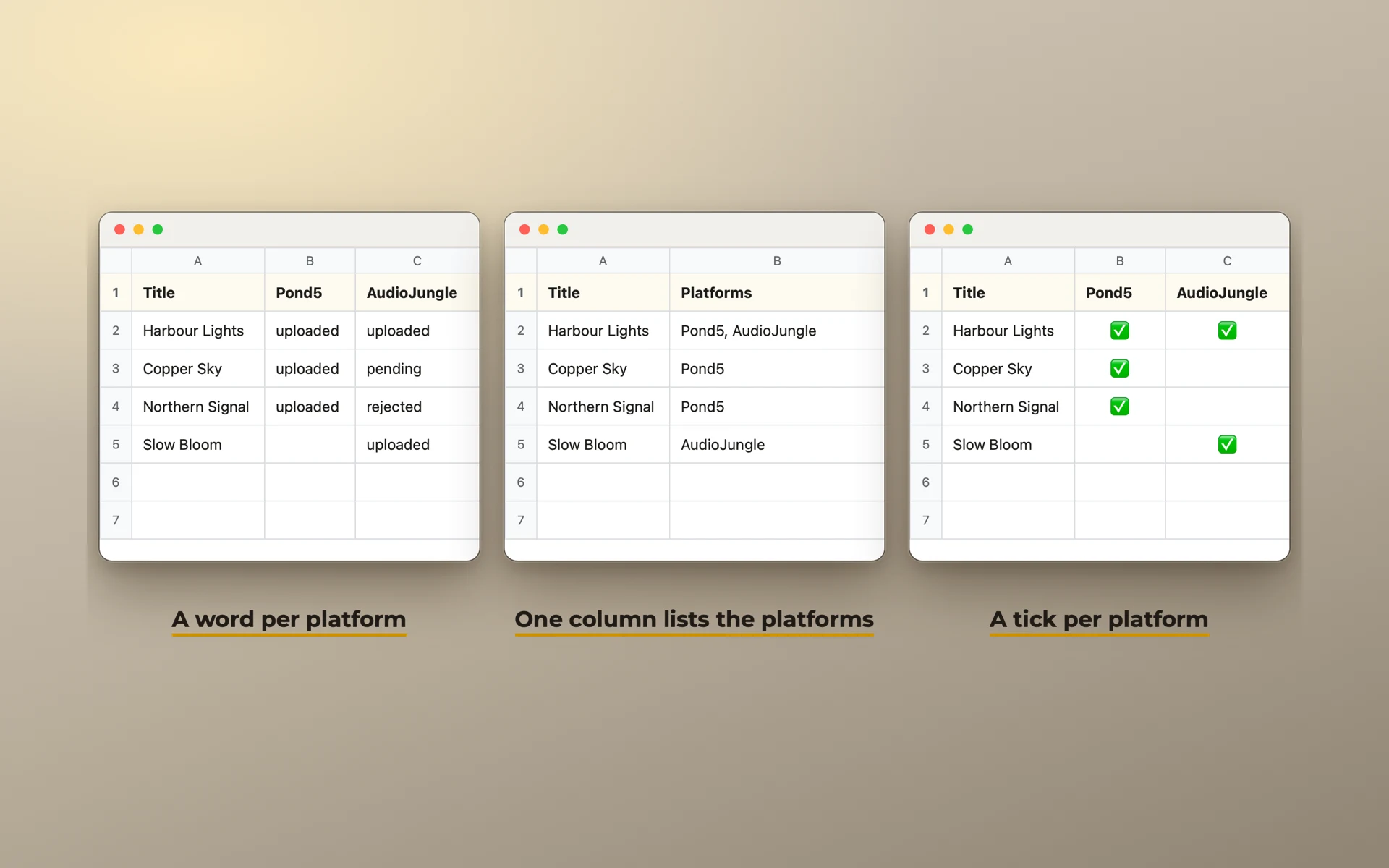
- One writes a word in each platform column:
uploaded,pending. - One keeps a single column and lists the platforms in it:
Artlist, AudioJungle. - One puts a tick where the track is live.
The import reads all three. What matters is the shape. A row is a track. A column is a platform.
Import
- Save your Google Sheet as CSV, or use an Excel file.
- Open Settings → Import & export and click Import tracks….
- The first time, two pictures show a sheet that will do. Press Next, then Choose spreadsheet…. Or press Skip to choose the file at once.
- Choose the file. The first time, a short guide walks you through the import window. Press Show me or Skip.
- The top line says how many new tracks go where. Press Change list to pick another list or make a new one.
- Look at your sheet. It is shown as it is, column by column. Under each column name it says what the column becomes: Title, a platform, the Genre list, a new field.
- Some columns are yellow. tracklog was not sure about them. Press Look at N columns and it takes you to each one.
- To change a column, click its name. A small window opens beside it. Choose where it goes, create a new field or skip it. Press Next column to move on.
- Click Import. Nothing is saved before this.
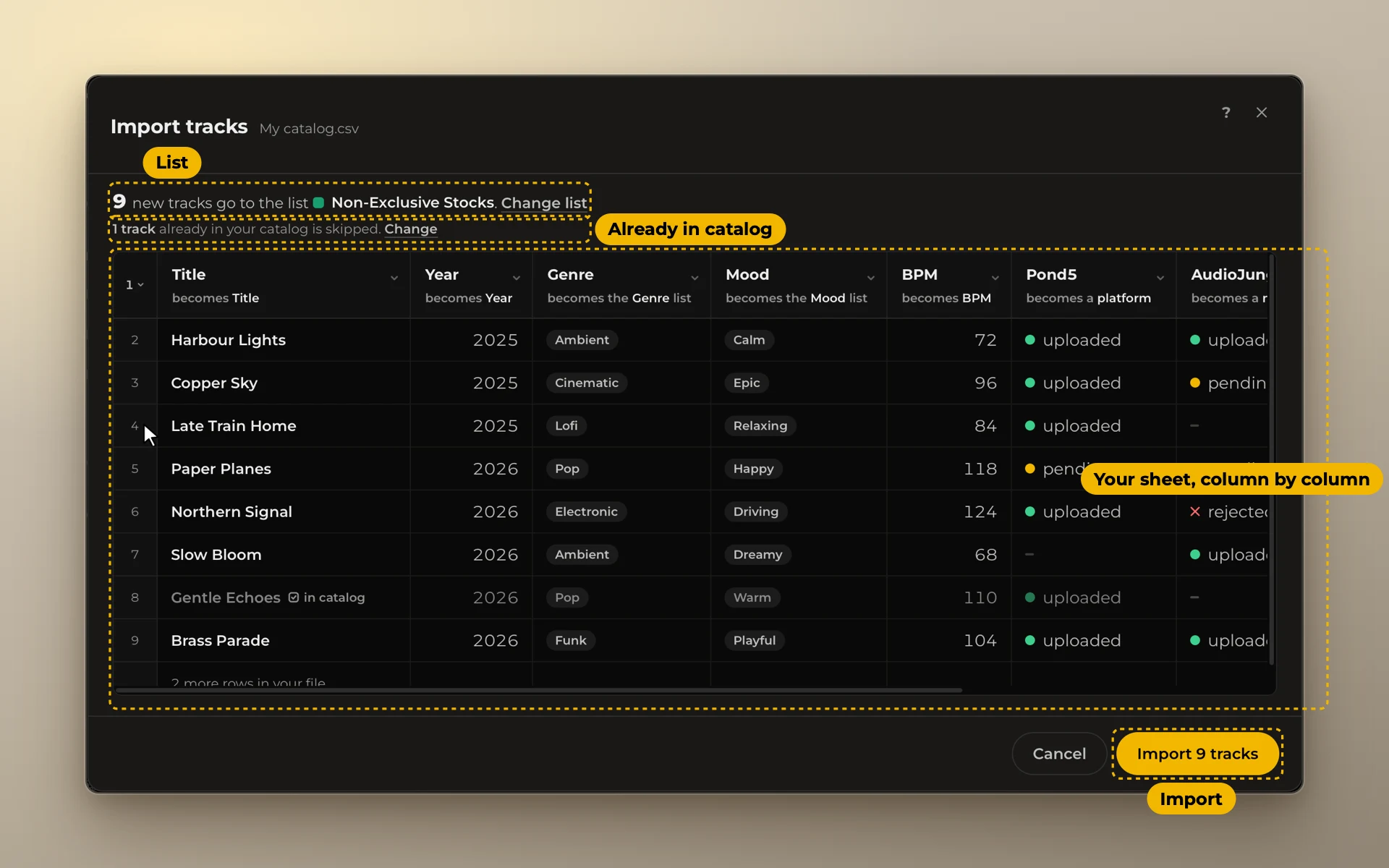
If some tracks are already in your catalog, the window says so: "1 track already in your catalog is skipped." Press Change to choose Skip them, Fill in the blanks (add only missing values) or Add again. Tracks added again are counted as duplicates. See Duplicate names.
Your catalog is backed up before the import. Undoing an import removes only what that import added.
The same shape in tracklog
This is the same file after the import. Its shape did not change.
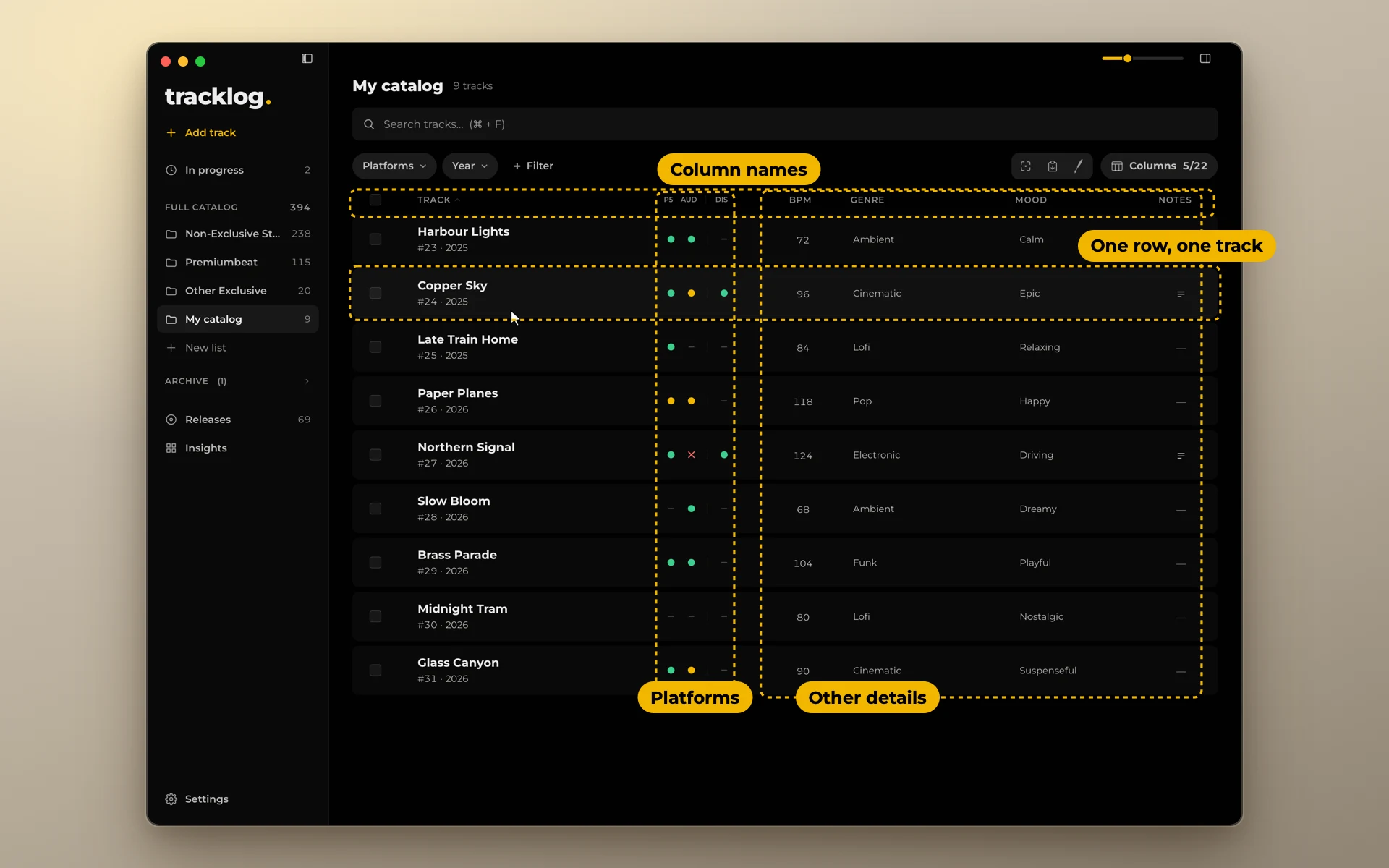
- One row is still one track.
- A platform is still a column. The word became a dot. Green is Live. Amber is Review. Red is Reject.
- Genre and mood are still words. Now they are the same words across the whole catalog, so you can filter by them.
- Notes are still free text. The small icon says a note is there.
Only the columns you need are on screen. The Columns button turns the others on and off.
Prepare your spreadsheet
The import understands a lot on its own. If something comes in wrong, fix it after: the paint brush, the bar for many tracks, or undo the whole import. If you prefer to prepare the file first, this is what works best:
- One row, one track. Column names in the first row. A title column is required.
- A platform is a column with marks, like
uploadedorpending. Or one column that lists platforms in each cell:BMI, Artlist. - Status words it understands:
live,uploaded,yes,✅become Live.pending,submitted,reviewbecome Review.rejected,declinedbecome Reject.no,to uploadbecome To upload. - Dates: a full date, a month and year, or just a year.
- Several values in one cell, like genres or tags: separate them with a comma or a semicolon.
- Avoid merged cells, several tables on one sheet, and total rows.
A word it doesn't know becomes Not marked. A typo like aprooved or your own word like in work comes in as Not marked, and the import window shows it. Fix these with the paint brush after the import.
New to tracklog? Download it free for 14 days.