Link your files
Show tracklog the folders where your music lives. Each track then knows its project, its versions with their lengths, and its stems.
Track files come in the next update of tracklog. This page shows how they work in that update.
Add your music folders
- Open Settings → Files and click Add folder….
- Choose the folder where your projects and versions live. Is your archive on another drive? Add that folder too.
tracklog only reads these folders. It never moves, renames or deletes your files.
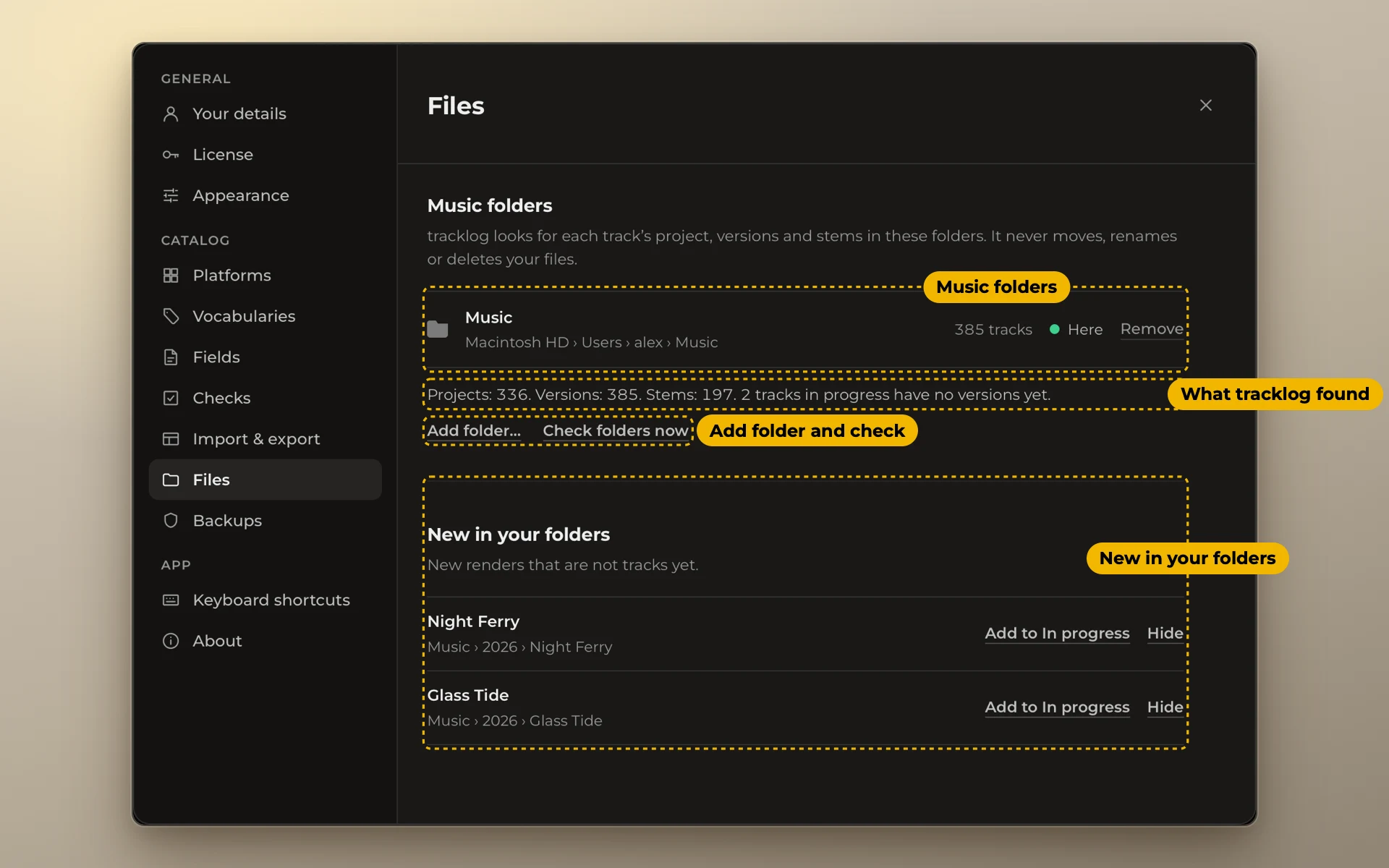
Under the folders you see what tracklog found, for example Projects: 336. Versions: 385. Stems: 197. Tracks in progress are counted apart. They have no versions yet.
Link all tracks at once
Click Link files…. It is there when tracklog has something to link, for example right after you add a folder. tracklog reads your folders and matches files to tracks by name. Nothing is linked until you click the button.
A track with no files shows Link all tracks at once… in its card. It opens Settings → Files.
On the left you see the groups:
- Which folder? tracklog is not sure about these. Another track has the same name, or had it before. Or the files are in two of your music folders. Under each track it says why. A folder is already picked for you. Pick another one, or Skip this track.
- Ready: these tracks get their files when you click Link. There is nothing to choose. To see them, click Show list.
- No files: there are no files with this track's name. Maybe the folder has another name. tracklog may offer a folder with the track's number in its year. It says why. Pick it, or click Choose folder…. A track you don't touch is left for later.
The lengths of each track come from its files. To see which lengths change, click Show which under Ready.
Tracks that already have files stay as they are.
Changed your mind? Press ⌘ + Z. All the tracks you linked go back at once.
Files on the track card
Open a track. Files shows where its files are.
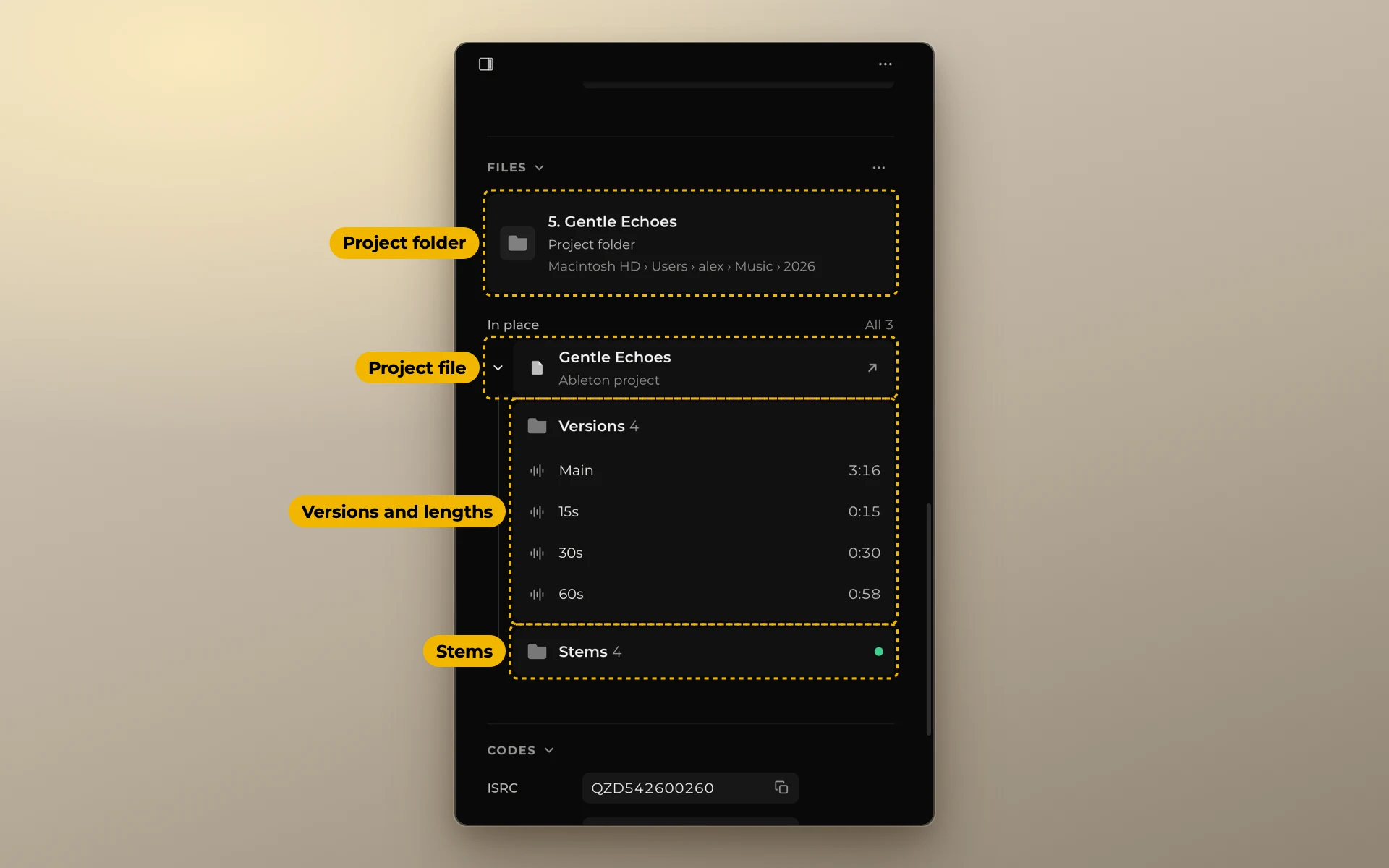
- Project folder. The track's folder, at the top. Below its name you see the drive and folders it is in. Click it to open the folder in Finder, or in File Explorer on Windows.
- In place. How many of the track's parts are where tracklog last saw them, for example All 3.
- Project file. Click it to open the project in your music program. The arrow at the end of the line shows that it opens.
- Versions. Each version with its length. Click a version to listen to it. To copy all lengths, point at Versions and click Copy lengths.
- Stems. How many stems the track has. Click the arrow to see them. Click a stem to listen to it.
- Upload masters. Zips and copies you made for platforms. You see this line only when the track has them.
Point at a folder and its icon turns into a magnifier. A click opens the folder. The words come up as a hint after a moment.
Is a group in another folder, not in the project folder? Then a small line under it says where.
Nothing found for a group? It says None found. Point at it and click Choose folder… to pick the folder yourself.
The ··· button next to Files holds the rest:
- Rescan the folders reads them again.
- Choose project file… picks the project by hand.
- Choose versions folder… links another folder.
- Move to stems and Move to versions fix a file that sits in the wrong group.
- Detach files removes the link. The lengths stay.
A track with no files yet shows Drop a folder in its card. Drop the track's folder there, or click it and choose the folder.
You can also open files right from the catalog. In Columns, turn on Project folder, Project file and Versions folder. Click an icon in one of these columns to open the folder or the project. The track itself does not open.
When a drive is off
tracklog checks your folders when it starts, when you connect a drive and when you come back to its window. To check right now, click Check folders now in Settings → Files. The result stays next to it, for example Checked 5 min ago. Everything is in place.
If a drive is not connected, the card says Drive not connected. The folders on that drive turn grey. Folders on other drives still open. Nothing in your catalog changes. Connect the drive and they are back.
When folders were moved
Did you move or rename folders? Then a bar comes up on top of the catalog, for example The folders of 25 tracks were moved.
- Click Find them. tracklog looks on the drive.
- It says how many it found. Click Review.
- Moved folders shows where each track is now. Check the list and click Relink.
Nothing is relinked until you click Relink. Your files are not moved. Changed your mind? Press ⌘ + Z.
In Moved folders, Check holds tracks found in more than one place. Pick the right folder for each. Not found holds tracks tracklog could not find. Link them later from their card.
Were the folders on your Mac's own disk? Then Find them asks where they are now. Choose the folder, and tracklog finds the rest nearby.
To hide the bar until next time, click Later.
New in your folders
Settings → Files also lists new renders that belong to no track yet, under New in your folders. Click Add to In progress to add one as a track. Click Hide to stop seeing it.
To listen to your tracks, see Listen to your tracks.